
Flatten a PDF form or keep it editable?
Decide when to flatten a filled PDF form, what you may lose, and how to check the saved copy. Keep an editable original for later corrections.

In this article
- What flattening changes
- Choose by the recipient's task
- A practical save-and-check workflow
- Keep an editable master
- Inspect the appearance first
- Flatten a separate copy
- Reopen the final result
- Worked example: a registration form
- Check it yourself
- Limits
- Be careful with existing signatures
- Frequently asked questions
Flattening can help when a completed form needs a fixed visible appearance. It is a poor default when the recipient still needs to fill fields, correct answers or process interactive form data.
Before using Flatten PDF, save an editable copy and decide what the next person must do with the document. A file that looks finished is not necessarily ready for every submission workflow.
What flattening changes
A form has fields that hold values and a visible appearance on the page. Flattening incorporates visible field or annotation content into the page. The result is intended to be read as page content rather than filled in through those original interactive fields.
That does not mean the file is protected against editing. It also does not prove that all old values or other hidden information have been removed. Use redaction for a task that requires removing sensitive content, and verify that result separately.
Choose by the recipient's task
| Recipient needs to… | Keep in mind |
|---|---|
| Fill remaining fields | Send an interactive form in the format requested |
| Read or print a completed copy | A reviewed flattened copy may be suitable |
| Extract structured field values | Ask whether flattening is accepted |
| Verify an existing digital signature | Preserve the signed original |
| Receive confidential material with details removed | Flattening alone is not sufficient |
Adobe's form-filling guide distinguishes interactive forms from flat pages. A page without interactive fields can still contain text and images; it is not necessarily a scanned image.
A practical save-and-check workflow
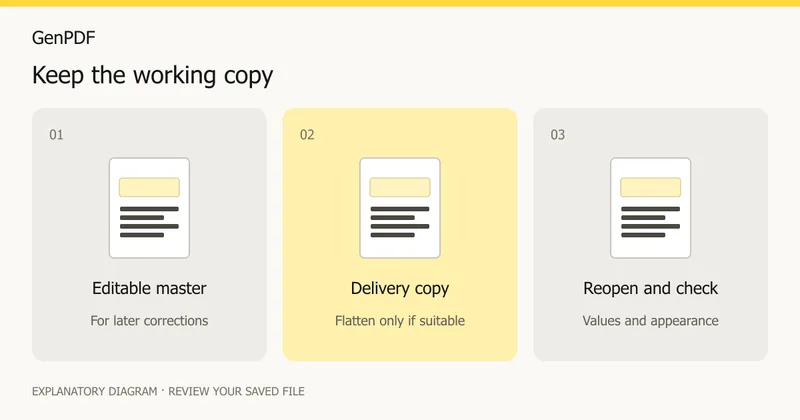
Keep an editable master
Finish the answers in Fill PDF form, leave the active field and download the result. Use a descriptive filename. Open this copy again before flattening so you know the data survived the first save.
Inspect the appearance first
Check long answers, checkbox states and values near the edges of fields. If an answer is already clipped or missing, flattening may preserve that problem rather than repair it. Try another reader to distinguish missing data from a display issue.
Flatten a separate copy
Run the flattening tool on the reviewed file and keep the result under another name. Do not overwrite your only working copy. If the recipient specified a particular submission format, use that requirement to decide which file to send.
Reopen the final result
Read every filled field without clicking into it. Check a print preview if printing matters. Then compare the final copy with the editable master: names, dates, selections and the ends of long answers should all be present.
Worked example: a registration form
Take a one-page registration form from an invented club, Lakeside Walking Group, at example.com. You fill the name, date of birth, a checkbox and a two-line comment in Fill PDF form. You save it as registration-master.pdf.
The club asks for a copy to attach to an email. Nobody needs to type in it again, so you flatten a copy and name it registration-sent.pdf. Weeks later the club asks you to correct the comment. You go back to the master, change it and flatten again. If you had flattened your only file, you would be retyping the whole form.
Check it yourself
- Click inside a former field in the flattened copy. If nothing opens for typing, the field is no longer interactive.
- Select all text on the page and copy it into a plain-text editor. See which answers appear.
- Open the file in a second reader and in your phone's viewer. Look for clipped answers.
- Compare page counts of master and copy, and look at the file sizes. A large change deserves a look.
- Use search for a word you typed in a field.
None of these tests proves that old field data is gone. If that matters, treat the file as sensitive and use the redaction tool for content that must not be shared.
Limits
- Flattening is not security. It does not remove hidden metadata, comments or old values by itself.
- A flattened file cannot be turned back into fillable fields. Keep the master.
- A field whose text did not fit stays clipped.
- Some portals want the interactive form. Read their instructions first.
Be careful with existing signatures
A drawn or typed signature is different from a certificate-based signature. Adobe describes the latter in its certificate signatures documentation. Preserve a certificate-signed original and avoid post-signing changes unless the intended workflow allows them.
If you only need to correct ordinary text before the form is final, see editing with the same font. If the page is a scan, OCR and PDF editing address a different problem from flattening.
Prepared on 16 October 2026. This is a decision guide, not a new two-reader compatibility test. The article makes no sanitization claim. Written with AI assistance.
Frequently asked questions
Does flattening remove all hidden information?
No. Do not treat flattening as redaction or data sanitization. Check sensitive content separately and keep only what the recipient should receive.
Will the recipient still be able to fill the fields?
Flattened field appearances become page content rather than ordinary fillable fields. Keep an unflattened copy when further form filling is needed.
Should I flatten a digitally signed file?
Do not modify a signed original merely to change its appearance. Changes can affect signature validation. Check the recipient's requirements and preserve the signed file.
Why does a flattened form still show my answers?
Flattening draws the visible answers onto the page itself, so they stay visible even though the fields no longer accept typing.


