
Edit PDF text with the same font: missing letters explained
Why does a PDF font change when you edit a word? Check embedded fonts, missing characters and fallback warnings, then verify the saved file.

In this article
You replace a name in a PDF and the new word looks heavier than the rest of the sentence. Reducing its size makes it shorter, but it still looks wrong. Before changing spacing, check whether the editor is using the original font at all.
To edit PDF text with the same font, the necessary font data and characters must be available to the editor. A document can display perfectly while lacking what is needed for a new word. Start with a short edit in the PDF text editor, inspect its font status, and reopen the downloaded result.
Check what changed, and when
| What you see | What to check first |
|---|---|
| One unfamiliar character | A missing character supplied by a fallback font |
| An entire paragraph looks different | Font selection, weight and replacement warnings |
| A new box does not match nearby text | The add-text tool's own settings |
| The saved file differs from the editing view | The downloaded file in another reader |
| The appearance is correct but copied words are wrong | Text encoding and reading order, separately from font appearance |
Keep the original file. Change one representative word before editing a long document. Include an accented letter or a number if those are part of the real change; a successful test with plain English letters does not test every character you need.
Full fonts, subsets and replacements
A PDF can carry a font or only a subset of its characters. It can also reference a font without carrying its data. Adobe explains these distinctions in its font embedding documentation.
Imagine a document containing “Miller” that must say “Muñoz.” The original word does not demonstrate that the stored font includes “ñ.” This is an illustrative example, not a test result. A replacement can match the general style while differing in width or weight.
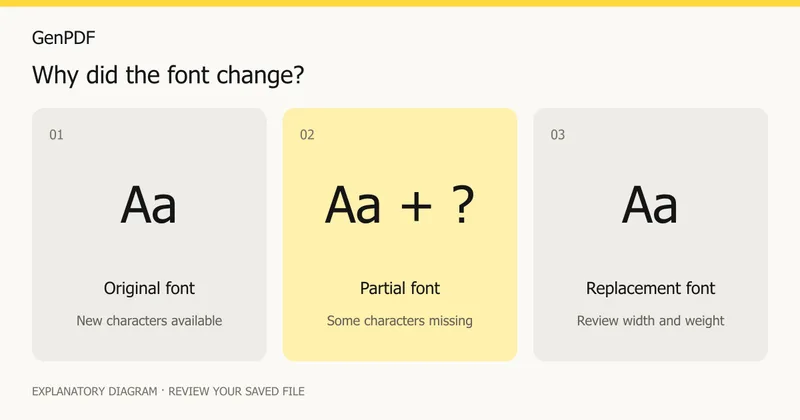
In GenPDF, inspect the font information after typing. The original font may be used throughout, combined with another font for missing characters, or replaced. Read the warning rather than relying only on the selected font's name. If no available font can draw a character, resolve that before using the file.
Find the font in Acrobat
If you have Acrobat, open Document Properties and choose Fonts. Adobe's font-name guide documents the path for Windows and macOS. An “Embedded Subset” label identifies a partial font; it does not promise that a new name can be written in it.
The list describes the PDF, while the editor's status describes the font it will use for your change. Compare both when diagnosing a mismatch. This guide does not report a new test performed inside Acrobat.
Worked example: a price list
Imagine a one-page price list from an invented shop, Maple Lane Studio, at example.com. The line "Frame, oak: 40" must become "Frame, oak: 45" and the heading "Spring range" must become "Été range". The number change is easy: digits are already in the file. The heading is harder. It needs "É", and the original heading may have been set from a font that stored only the letters in "Spring range".
So you edit the number first and check it, then edit the heading and watch the font status. If the status shows that another font supplies the "É", the result may mix two designs in one word. You then decide whether that is acceptable, whether to rewrite the heading without the accent, or whether to ask the shop for the source file. This is an invented illustration; your document may behave differently.
Check it yourself
You do not need to take the editor's word for it:
- Zoom to 300 percent in a second reader and compare the stems and curves of the new letters with their neighbours.
- Select the edited word and copy it. The pasted text should be the word you typed, not boxes or question marks.
- Search for the new word. If search cannot find it, the text may not be stored as real text.
- Export or print one page as an image and look at the line from a normal reading distance.
- Check the document's font list in any reader that offers one, and compare it with the editor's status.
What usually causes a mismatch
- The font was a subset, so a new character is missing.
- The font was not embedded, so the reader that opens the file picks its own.
- The text was converted to outlines or is an image, so there is no font to reuse.
- A new box was created with its own default font instead of editing the old text.
- The original text used a different weight or width than the one chosen.
Limits
GenPDF edits in the document's own font when the PDF contains it. When it does not, or when a character is missing from the stored font, another font fills in and the editor says so. Nothing in this guide promises an identical result for every file. Page images, outlined text and some unusual font formats have no reusable font at all.
For the editor itself, see the PDF text editor page. If your document contains Arabic, the guide to broken Arabic letters covers a related problem.
Save a small change before editing everything
- Choose Edit text and select the existing phrase. Use Add text only when you intend to create another object.
- Replace the word and inspect any font warning. Keep the original size and weight initially.
- Finish editing and check line endings, neighbouring labels and the bottom of the paragraph.
- Download a copy and open it again. Compare at the same zoom level, then copy the edited sentence into plain text.
If the original font cannot be used and exact branding matters, ask for the source document or an appropriately embedded export. Repeated spaces and stretched text are fragile ways to hide a substitution.
When another workflow makes more sense
For extensive rewriting, consider flowing paragraphs in Word. For table-heavy documents, review the PDF-to-Word table checks. If the page contains only a scan, read OCR versus editing a scanned PDF: recognizing text and matching its original typeface are different tasks.
Prepared on 16 October 2026 from GenPDF's current font-status messages and the linked Adobe documentation. Examples are instructional; no universal same-font result is claimed. Written with AI assistance.
Frequently asked questions
Why does changing one word change the font?
The PDF may contain only the characters used in its original text. A new word can require missing characters, causing the editor to use another font. A new text box may also use a different default font.
Does an embedded font guarantee matching edits?
No. It may be a subset, and its availability for viewing does not guarantee that an editor can use it for every new character. Check the actual font status after typing.
Can I use OCR to recover the original font?
OCR recognizes words from an image. It does not recover the original font file from the scanned page.
Is it better to retype the whole line or only the changed word?
Change only what needs changing. Untouched text keeps its original appearance, and a short edit is easier to check than a rewritten paragraph.


