
PDF to Word: why tables break and how to fix them
Check broken PDF-to-Word tables: missing cells, merged headings, borderless layouts and page images. Choose an export mode and verify editable values.

In this article
- Why a table can lose its structure
- Choose a mode that matches the job
- Review five things in the downloaded file
- 1. Confirm that it is a table
- 2. Follow a row from label to total
- 3. Inspect merged headings
- 4. Check the page boundary
- 5. Save and reopen
- Worked example: a quote with ruled and borderless parts
- Check it yourself
- Limits
- When to rebuild rather than keep converting
- Frequently asked questions
The converted document opens, the numbers are visible, and the borders look familiar. Then you change a value and discover that the “table” is a picture—or a collection of unrelated paragraphs. A useful PDF-to-Word table must preserve the relationship between each value and its row and column, not just its appearance.
Start with one representative page in PDF to Word. Choose an editable mode, then test a cell before converting or correcting the whole report.
Why a table can lose its structure
PDF records page content at fixed positions. Those positions do not always identify which words belong to a table cell. Microsoft describes this reconstruction problem in Opening PDFs in Word. Lines that look like a grid to a reader may need to be interpreted by the converter.
In GenPDF, supported ruled tables are candidates for editable Word tables. Borderless layouts and complex grids need closer review. Do not assume that drawing a border around a broken result restores its underlying cells.
Choose a mode that matches the job
| Your next task | Starting point | Acceptance check |
|---|---|---|
| Change a few values in a report | Keep layout, editable | A value can be edited inside its cell |
| Rewrite the surrounding text | Flowing text | Paragraphs move naturally and table values remain associated |
| Place an uneditable visual copy in Word | Page images | The page is readable, but words are still inside an image |
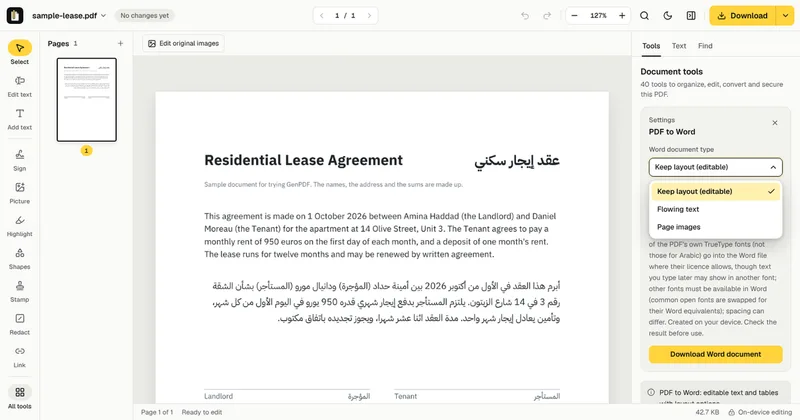
For the distinction between positioned text and reflow, see text boxes or editable paragraphs. Changing the export mode is more useful than repairing hundreds of misplaced spaces.
Review five things in the downloaded file
1. Confirm that it is a table
Click inside a value. Type a temporary character, then undo it. Check whether you are editing a cell, a paragraph or an image. A screenshot of a table is not an editable table, even when it sits inside a DOCX file.
2. Follow a row from label to total
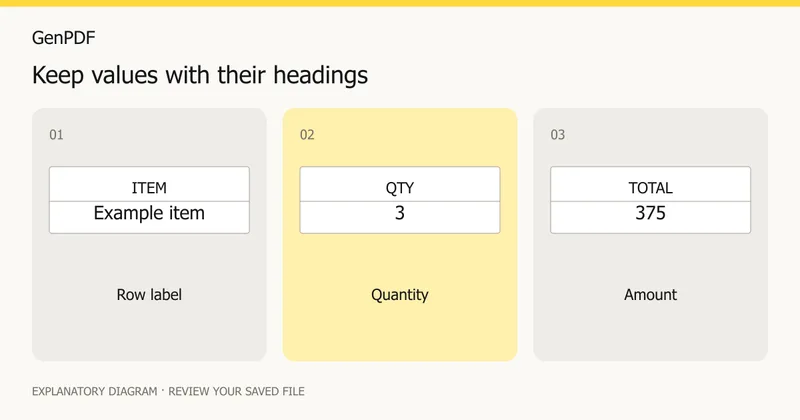
Use a simple calculation as a check. In an illustrative invoice, quantity 3 at unit price 125 gives 375. Verify that all three values remain under the right labels. This detects misplaced columns that a quick visual scan can miss; it is not a benchmark result.
3. Inspect merged headings
Confirm that a heading still covers the intended columns. A split or merged cell can shift every value below it. If only a small header is wrong, rebuilding those cells in Word may be faster than trying another conversion of the entire document.
4. Check the page boundary
Look at the last row on one page and the first row on the next. Confirm that no row is missing, duplicated or split into unrelated pieces. Repeated headers should be checked against the source, especially when the PDF prints them on every page.
5. Save and reopen
After making one real change, save the DOCX and open it in the application your recipient will use. Check line wrapping inside cells. A missing font can change row heights; see the font troubleshooting guide.
Worked example: a quote with ruled and borderless parts
Imagine a two-page quote from an invented joiner, Alder and Finch, at example.com. Page 1 has a ruled table with the columns Item, Qty, Unit and Total. Page 2 has a borderless list of terms in two columns, and the totals continue from page 1.
Export it in the editable mode and open the DOCX. The ruled table may arrive as a Word table; click a cell and type to confirm. The borderless terms may arrive as two text columns or as loose paragraphs, and that is where to look hardest. The total row on page 2 is the one that most often needs attention, because a table that crosses a page is harder to rebuild.
If the result fails your cell test, try the flowing mode for the terms and keep the quote table as it is, or rebuild only the broken part in Word. The names and numbers are invented, and this describes a method rather than a result.
Check it yourself
- Click in the table and look for Word's Table Design and Layout tabs. If they do not appear, it is not a table.
- Sort the Qty column. A real table sorts by rows; loose text boxes do not.
- Add up the totals independently and compare them with the printed grand total.
- Turn on the formatting marks (Ctrl+Shift+8 on Windows). Many tabs or spaces in a row mean the columns are spacing, not cells.
- Compare a print preview with the PDF side by side.
Limits
- Ruled tables are the supported case. Borderless tables, merged cells and tables that run across pages need individual review.
- A converter reads what is stored in the PDF; it cannot know how the table was originally designed.
- The free plan allows 2 Word exports a day, up to 20 pages each.
- A scanned table must be recognised before it can be edited at all.
Related reading: converting an Arabic PDF to Word covers right-to-left tables and mixed text.
When to rebuild rather than keep converting
For a small borderless table, creating a clean Word table and entering verified values may take less time than repairing uncertain structure. For a long report, ask for the spreadsheet or source document if available. A scanned table also needs text recognition before editable words are possible, and OCR does not itself establish correct cells.
Prepared on 16 October 2026 from the converter's documented modes and ruled-table handling. Screenshots show the existing interface; the numerical example is synthetic. No new Word application or cross-reader benchmark is reported here. Written with AI assistance.
Frequently asked questions
Why does a PDF table become ordinary text in Word?
A PDF can store lines and positioned words without a table structure. Conversion must reconstruct the rows and cells. Unsupported or borderless layouts may remain text or graphics.
Does a table that looks right have editable cells?
Not necessarily. Click inside a value and try editing it. A whole-page image can look correct while containing no editable cells.
Can GenPDF export every table as a Word table?
No. The converter reconstructs supported ruled tables. Check borderless layouts, merged cells and tables spanning pages individually.
Is Word export free?
The free plan includes 2 Word exports a day, up to 20 pages each. Paid plans have a higher daily allowance. The pricing page has the current figures.


