
Arabic PDF to Word: conversion modes and layout
Convert Arabic PDF to editable Word. Compare layout, flowing text and page-image modes, then check right-to-left text, fonts, spacing and tables.

In this article
- Why Arabic text or layout can change during conversion
- Convert the PDF in four steps
- 1. Open the file
- 2. Choose Save as Word
- 3. Pick the Word document type
- 4. Download and open the file
- Which mode should you choose?
- Check the file after converting
- Scanned PDF files
- Conversion limits and compatibility
- How this guide was written
- Related checks before you export
- Frequently asked questions
To create an editable Word document from an Arabic PDF, open the PDF to Word tool and choose Save as Word. GenPDF sets Arabic paragraphs right to left and offers three export modes. This guide helps you choose a mode and check the converted file’s fonts, tables and reading order before using it.
Why Arabic text or layout can change during conversion
A PDF preserves the positions of text and other page elements, but it does not always expose a paragraph or table structure that Word can reuse. A converter has to reconstruct that structure. Arabic conversion also requires the paragraph direction and reading order to be reconstructed correctly; otherwise words, punctuation or numbers may appear in the wrong order.
GenPDF handles this by marking Arabic paragraphs as right to left in the Word file itself. We checked a sample conversion on 15 October 2026 by reading the file's XML: in Flowing text, the Arabic paragraphs carried Word's right-to-left paragraph property (w:bidi) and the English ones did not. That property is part of the Office Open XML standard (ECMA-376). We read the file and its rendering in LibreOffice, not in Microsoft Word.
If your problem is that letters come apart when you edit the file before converting, read why Arabic letters break when editing a PDF. If the text turns into symbols when you copy it, read copying Arabic text from a PDF.
Convert the PDF in four steps
The pictures use the sample file GenPDF offers when you have none: a lease with an English paragraph and an Arabic paragraph, with invented names and amounts.
1. Open the file
Open the PDF to Word tool and choose your file. The editor opens PDF files up to 25 MB, and the file is not uploaded to be converted.
2. Choose Save as Word
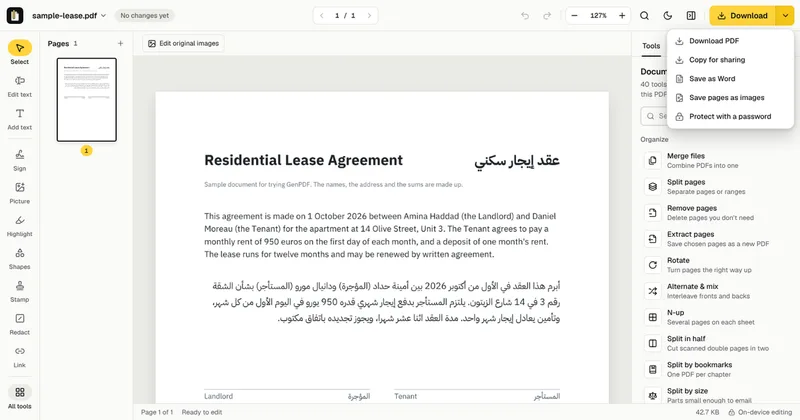
Click the arrow next to the Download button to open Download options, then choose Save as Word, as in the screenshot below. The PDF to Word settings appear in the side panel.
3. Pick the Word document type
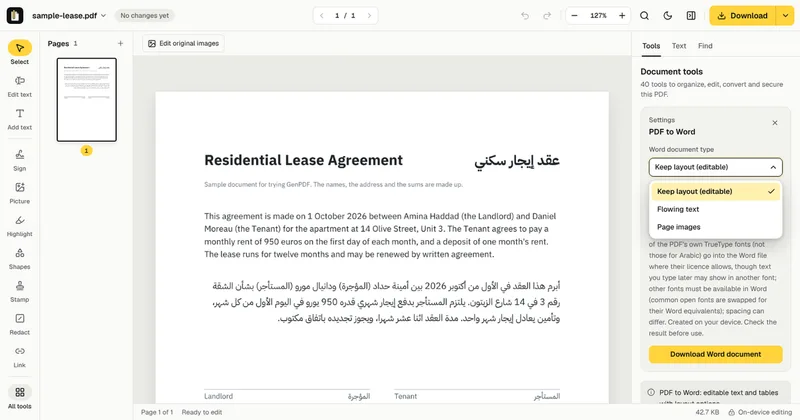
The menu called Word document type has three options, explained in the next section. Start with Keep layout (editable) if you want everything to stay where it is.
4. Download and open the file
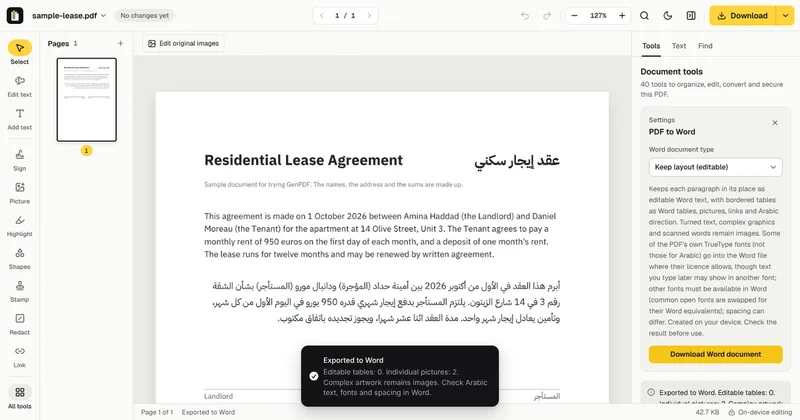
Click Download Word document. An Exported to Word message appears. It counts the editable tables and the individual pictures, says what stayed as images, and reminds you to check the Arabic text, fonts and spacing.
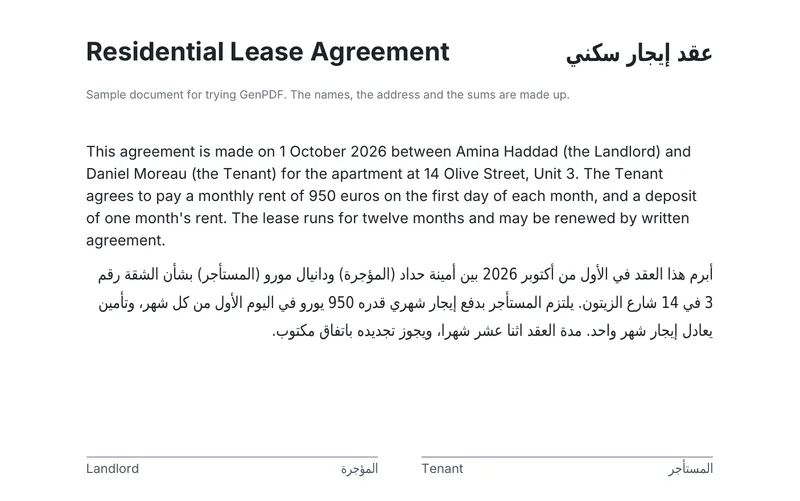
Open the .docx in Word or in any program that reads the format. The next picture is the file made by Keep layout, opened in LibreOffice: the Arabic title and paragraph read right to left and the English paragraph reads left to right, each in its place.
Which mode should you choose?
- Keep layout (editable): keeps each paragraph in its place as editable Word text. Bordered tables become Word tables, pictures are placed one by one, and links and Arabic direction are kept. Choose it to edit text where it stands.
- Flowing text: gives headings, paragraphs and lists that reflow, set out like the PDF, with running headers, footers and columns. Choose it to restyle the content or reuse it in another document.
- Page images: puts each page into Word as a picture, so it looks like the PDF, but the text inside the pictures cannot be edited. Choose it when the exact look matters more than editing.
Check the file after converting
A conversion is always approximate. Page images preserves the page appearance as images, without making the text inside editable. Check these points:
- Fonts. The fonts must be available in Word. Common open fonts are swapped for their Word equivalents, and if a font is not installed Word substitutes another, so spacing can differ.
- Tables. Tables with borders become Word tables. A table without borders is not detected as a table.
- Turned text and complex artwork. They stay pictures in Keep layout.
- Direction of one paragraph. Click inside it in Word. The Paragraph group on the Home tab has buttons for left-to-right and right-to-left text direction. We did not run this check in Word itself.
- Mixed lines. Numbers and Latin words inside an Arabic line keep their own direction. Read a line with a date or an amount to confirm.
Scanned PDF files
A scanned page has no text to convert. Page images works without reading it, but its text cannot be edited. For editable text, choose Edit text first: if you agree, the page image is sent to our server, read, and deleted as soon as the text comes back. Then save the recognised text and convert the file. The OCR PDF tool is the other way to read a scan. For the plain text with no layout, see copying Arabic text from a PDF.
Conversion limits and compatibility
- Limits. The free plan includes 2 Word exports a day, up to 20 pages each, with no account. For a longer file, save the pages you need with Extract pages and convert the new file. Pro and the 7-day pass have no limit on downloads. The details are on the pricing page.
- Approximate result. Fonts, spacing, borderless tables and turned text can differ from the PDF.
- Scans. Reading a scan works best on clear, straight pages. Handwriting is not reliable.
- Word itself. We tested the result in LibreOffice, not in Microsoft Word.
To compare converters and editors for Arabic work, see PDF editors compared for Arabic.
How this guide was written
The pictures come from the sample file GenPDF provides. On 15 October 2026 we rewrote this text for English readers and re-read the file made by the three modes from a production build of GenPDF in Chromium. The Arabic version of this guide was written first. An AI tool helped draft the text.
Related checks before you export
For more detailed checks, see PDF tables in Word and positioned text versus flowing paragraphs. If the source text itself changes appearance while editing, start with the PDF font guide.
Frequently asked questions
Can an Arabic PDF be converted to Word without errors?
Arabic text can be converted to editable Word text, but an error-free result is not guaranteed for every file. GenPDF sets the Arabic paragraphs right to left in the Word file, so they open in reading order, and numbers and Latin words keep their own direction. The conversion is always an approximation of the PDF, though. Spacing can change when a font is missing, so check the result before you rely on it.
Can I convert a scanned Arabic PDF to Word?
Yes, in two ways. Page images puts each page into Word as a picture without reading it, so the text inside cannot be edited. For editable text, choose Edit text first so the page is read, save the recognised text, then convert the file. Reading a scanned page is the one step that sends the page image to our server, and only after you agree.
Is my file uploaded to be converted?
No. The Word file is created in your browser. The only exception is reading a scanned page, which sends that page's image to our server after you agree, and deletes it once the text comes back.
How many files can I convert for free?
The free plan includes 2 Word exports a day, up to 20 pages each, with no account. Pro and the 7-day pass have no limit on downloads. The current limits are on the pricing page.
How do I convert an Arabic PDF to Word online for free?
Open the file in GenPDF, click the arrow next to Download, choose Save as Word, pick the Word document type and click Download Word document. It runs in your browser within the free plan's daily limits, and no account is needed.


