
Translate selected PDF pages and review the result
Translate only the PDF pages you need. Check page ranges, tables, unchanged pages and text that does not fit before saving a translated copy.

In this article
- Match the page range to the actual PDF
- Check what will be processed
- Review translation before accepting layout
- Compare unselected pages too
- When a different output is easier to review
- A worked example with an invented report
- What "keeps the layout" can and cannot mean
- Check it yourself
- Limits
- A practical check for a two-page selection
- Frequently asked questions
A 60-page report may contain only two pages you need in another language. Translating selected pages can reduce the amount of text processed and keep the review focused. The important part is verifying both the selected pages and the ones you intended to leave alone.
Start in the PDF editor. When AI is enabled, its translation workflow lets you choose the current page, a range or the whole document. Check the selection before approving text processing.
Match the page range to the actual PDF
Printed page numbers can differ from the page positions shown by a reader. A cover and contents page may make printed page “1” the third page in the file. Use thumbnails and visible content to confirm the selection rather than relying only on the printed number.
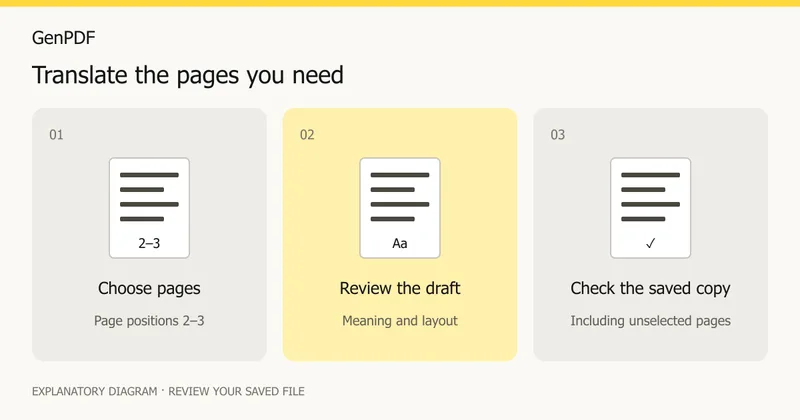
For an example five-page document, note what appears on pages 1, 4 and 5 before choosing pages 2–3. This is a suggested test procedure, not a result from a newly translated file.
Check what will be processed
GenPDF's documented workflow sends extracted text from the chosen pages after consent, rather than uploading the original PDF for the AI step. Read the current consent notice and security information before using confidential material. Text extraction and OCR are separate operations.
The in-place translation path currently skips scan text and invisible-only layers. If the needed page is a scan, review OCR versus editing rather than assuming searchability means translation support.
Review translation before accepting layout
Check names, dates, units and repeated terms first. Next inspect headings, paragraph endings and table cells. A fluent sentence can still express the wrong unit or belong to the wrong row. A translation that fits is not necessarily a correct translation.
For a table, compare one complete row with the source. For a numbered list, confirm that the numbers still label the same instructions. Longer translated sentences may wrap; examine the text below them for overlap.
Compare unselected pages too
After saving, open the downloaded copy and compare the unselected pages visually with the original. Check page count, orientation, images and bookmarks if your workflow relies on them. Do not infer byte-for-byte identity from an unchanged appearance: saving can rewrite a PDF's internal structure.
If only a separate translated excerpt is needed, extracting pages may simplify delivery. Keep enough context to explain headings, references and tables, and label the excerpt clearly for its recipient.
When a different output is easier to review
For a substantial rewrite, a Word export with flowing paragraphs can be easier to revise. For a layout-sensitive report, keep the source beside the draft and resolve every clipped block before sharing.
Google's document translation help describes a separate document-upload workflow; its limits and behaviour should not be assumed to match GenPDF's page selection.
A worked example with an invented report
Take a ten-page "Annual Maintenance Report" from an invented company, Riverside Facilities, at example.com. Only pages 2 and 3, the summary of repairs, must go to a Spanish-speaking colleague. Pages 1 and 4 to 10 stay in English.
- Open the file in the editor and look at the thumbnails. Printed page 2 is the second thumbnail, so the range is 2 to 3.
- Choose the page range, read the consent notice, and start.
- Review the draft. Look first at the repair dates, amounts and unit names, then at the table of repairs.
- If the panel lists paragraphs that could not fit in their space, handle those one by one: shorten the translated sentence or edit the box by hand.
- Download the copy and compare pages 1 and 4 with the original.
Everything here is invented, and no result is claimed.
What "keeps the layout" can and cannot mean
The translation keeps the page's layout as far as it can, so headings, tables and columns stay where they were. A translation is often longer or shorter than the source. Paragraphs that cannot fit are listed so you can fix them, which is more honest than silently shrinking text. Read the list, then look at the page.
| Situation | What to expect |
|---|---|
| Short labels in a table | Check each cell for fit and meaning |
| A long paragraph translated into a wordier language | May not fit; it appears in the list |
| Right-to-left to left-to-right (or back) | Check alignment, punctuation and numbers |
| A page that is a scan | Not translated; see the OCR guide |
Check it yourself
- Search the saved copy for a term you expect in the new language, then for one you expect to be gone.
- Copy a translated paragraph into a plain-text editor and read it as a sentence, not as a layout.
- Check that numbers, dates and currency symbols still match the source.
- Open the saved copy in a second PDF reader to see that the text looks the same there.
Limits
- Only a page's own text is translated. A scanned page is skipped, read or not, and so is the invisible text layer over its picture; the panel names those pages.
- Translation can make mistakes with names, abbreviations and legal wording. It is a draft to review, not a certified translation.
- Text that does not fit is listed rather than guaranteed to fit.
- AI is available only where the service has switched it on, and your agreement is needed before text is sent.
A practical check for a two-page selection
Suppose a ten-page PDF needs only pages 2–3 translated. Record the opening words of pages 1 and 4 before starting. After saving, compare those pages with the original, then check every paragraph on pages 2–3, including captions and footnotes. This is a suggested verification procedure, not a measured result.
If you only need an answer from those pages, chatting with a PDF and checking its sources may avoid translating content you do not need. Translation and question answering serve different purposes.
Guide prepared on 16 October 2026 from project documentation. No new external translation request was made, and unchanged-page behaviour has not been newly benchmarked for this draft. Written with AI assistance.
Frequently asked questions
Can I translate only a few pages?
GenPDF's documented AI workflow supports all pages, the current page or a page range when AI is enabled. Review the selected range before approving processing.
Will words inside scanned page images be translated?
No. The in-place translation leaves a scanned page as it is, even after its words have been read or saved as an invisible text layer, because a translation cannot be written over a picture. The panel names the pages it left. Summary and Ask can read a scan once it has been read.
Is translation free?
Where AI is switched on, free use needs a confirmed account and has a daily allowance of 20 credits. Paid plans have a larger allowance (about 100 pages translated a day). The pricing page lists current figures.
Which languages can I translate between?
Any of Arabic, English, French, German, Spanish and Portuguese into any other of those six.


